
Server-Side Tagging in 2026: GTM Server Containers and GA4
 Derar SattoufUpdated SEO & analytics
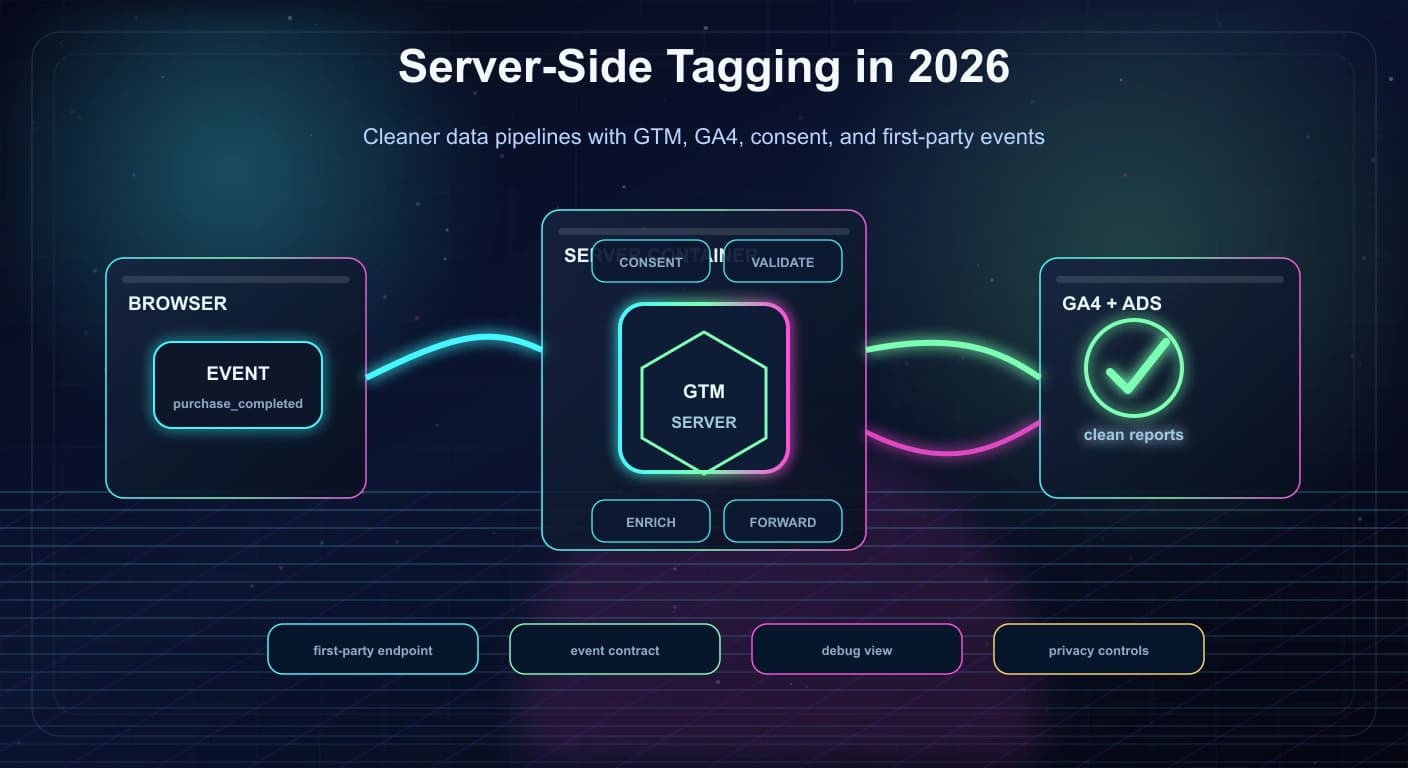
Analytics implementation has become more technical, more privacy-sensitive, and more tied to product decisions. Client-side tags still work, but browser restrictions, consent requirements, ad blockers, page-speed budgets and sloppy event design push many teams toward server-side tagging: a server container that sits between the browser and your analytics and advertising destinations.
Server-side tagging adds a GTM server container that you host, commonly on Google Cloud Run. The browser sends one stream of events to your first-party endpoint, and the server container validates, filters, enriches and forwards them to GA4 and other destinations. The benefits are less third-party JavaScript in the browser, more control over what leaves your infrastructure, easier validation and redaction, and more durable first-party cookies. It is not a way to bypass consent.
It is also not free. Google's Cloud Run guide recommends at least 2 instances, and its default deployment is sized at roughly 45 USD per month per server by its own estimate, so verify current prices. A clean event contract matters more than the server, because garbage events forwarded server-side are still garbage. If you only need first-party serving of Google tags, Google tag gateway may be enough without running a server container.
Consent mode v2 (ad_storage, analytics_storage, ad_user_data, ad_personalization) must be set to defaults before any measurement call, and updated when the user chooses. For purchases and other critical events, deduplicate on transaction_id and consider sending the event from your backend via the Measurement Protocol as the source of truth. Monitor the whole thing like production infrastructure: uptime (/healthy), error rate, event volume, duplicates, and consent distribution.
Keep Google's server-side tagging docs, the Cloud Run setup guide and the consent mode implementation guide open while you implement. Details that depend on Google's current console or pricing change, so verify them against the current docs.
This site follows the consent rule described below: Google Analytics loads only after a visitor accepts it, as the privacy policy explains.
What server-side tagging actually changes
In a client-side setup every vendor script runs in the visitor's browser and talks to its own servers:
Browser -> Google tag / GTM web container -> GA4, Ads, Meta, LinkedIn, ...In a server-side setup the browser talks to a first-party endpoint, and your server container fans out:
Browser (web container / gtag)
      |
      v   one request, first-party domain
https://metrics.example.com  ->  GTM server container (Cloud Run)
                                    |-- GA4 client receives the request
                                    |-- tags: GA4, Ads, CRM, warehouse
                                    |-- variables / transformations
                                    v
                         GA4, Google Ads, other destinations
The server container uses the same concepts as a web container (tags, triggers, variables) plus clients, which receive and parse incoming requests. The GA4 client understands GA4 requests, so your GA4 tag in the browser keeps working but sends to your domain.
What you gain:
| Capability | Why it matters |
|---|---|
| Fewer vendor scripts in the page | Less JavaScript to download and run; helps page performance if you also remove the client tags |
| Control point for data | You can drop fields, hash identifiers, and block destinations per event |
| First-party cookies set by your server | Can last longer than cookies set by JavaScript in some browsers. Verify current browser rules |
| Validation and enrichment | Reject bad events, normalize currency and campaign fields |
| Security of secrets | API secrets and tokens live on the server, not in the page |
| One event, many destinations | Send once from the browser, forward to several systems |
What you do not gain: permission to collect data you have no consent for. Server-side tagging is a technical change, not a legal one.
Should you do it? A decision table
| Your situation | Recommendation |
|---|---|
| Small content site, GA4 only, low traffic | Stay client-side. Fix event design and consent first |
| You only want Google tags served from your own domain | Look at Google tag gateway (CDN-level setup, no server container to run). Verify current availability on your CDN |
| Ecommerce or SaaS with several ad platforms and a CRM | Server-side tagging is a strong fit |
| Strict privacy requirements or regulated industry | Server-side gives control, but get legal review and keep consent logic explicit |
| Many third-party scripts hurting INP and LCP | Server-side can help, but removing scripts matters more. See Core Web Vitals and INP in Next.js |
| No one owns analytics in engineering | Do not start. An unowned server container decays quickly |
| Budget cannot cover hosting and maintenance | Stay client-side |
Server-side GTM versus Google tag gateway
| Server-side GTM | Google tag gateway | |
|---|---|---|
| What it does | Hosts a container that processes and forwards events | Serves Google tags and routes Google measurement traffic through your domain, via CDN or load balancer |
| Where tags run | On your server | Still in the browser |
| Covers non-Google vendors | Yes (with the right tags or templates) | No, Google tags only |
| Cost | Hosting you pay for | Usually a CDN configuration, check your provider |
| Data transformation | Yes | Limited |
| Setup effort | Higher | Lower |
You can use both. Check Google's current gateway documentation for supported CDNs and steps.
Lab: stand up a server container
This lab uses Google Cloud Run because Google's docs describe it as a supported path and it is the most common. Alternatives are App Engine (check current status in the docs), a manual setup on any container platform, or a managed tagging host from a third party. Vendors differ in price and features, so evaluate them yourself.
Step 1: create the server container
- In Tag Manager, create a container and choose Server as the target platform.
- Pick Automatically provision tagging server to let Tag Manager create the Google Cloud resources, or choose manual provisioning if you want full control over your cloud project.
- Note the container config string. If you deploy manually, you pass it to the container image as an environment variable.
Prerequisites on the Google Cloud side: a project with billing, and permissions to create Cloud Run services. Use a dedicated project so analytics infrastructure is isolated from application infrastructure.
Step 2: deploy with sensible capacity
Google's Cloud Run guide recommends running at least 2 instances to reduce the risk of data loss during an outage, with autoscaling up to a configured maximum (its sample uses 10). The maximum is a cost ceiling, not an expected steady state. A manual deployment looks like this (copy the exact current command from Google's guide, since image names and flags can change):
gcloud run deploy sgtm-prod \
  --image=gcr.io/cloud-tagging-10302018/gtm-cloud-image:stable \
  --region=europe-west1 \
  --platform=managed \
  --min-instances=2 \
  --max-instances=10 \
  --no-cpu-throttling \
  --timeout=60 \
  --set-env-vars="CONTAINER_CONFIG=<your-container-config>,RUN_AS_PREVIEW_SERVER=false" \
  --allow-unauthenticated
A separate preview server handles the debugging UI. Keep the preview server and tagging server distinct, and put the preview server's URL in the container settings. Verify the exact environment variables and image tag in the current guide.
Step 3: add a first-party domain
Use a subdomain you control, for example metrics.example.com. Do not use something that looks like an ad network. In Cloud Run you map the custom domain to the service, then add the DNS records Google tells you to add.
Then register it in Tag Manager: server container, Admin, Container Settings, Add URL, paste the server URL. Verify the endpoint:
curl -i https://metrics.example.com/healthyHTTP/2 200
content-type: text/plain
okIf /healthy does not return ok, stop and fix DNS, certificates or the service before you configure anything else.
Step 4: point your web container at the server
In your web container (or gtag), tell the Google tag to send to your server container. With gtag.js this is the server_container_url parameter:
<script async src="https://metrics.example.com/gtag/js?id=G-XXXXXXX"></script>
<script>
  window.dataLayer = window.dataLayer || [];
  function gtag(){dataLayer.push(arguments);}
  gtag('js', new Date());
  gtag('config', 'G-XXXXXXX', {
    server_container_url: 'https://metrics.example.com'
  });
</script>
In a GTM web container, set Server container URL in the GA4 configuration tag or the Google tag settings. Check the current UI labels in Google's docs since they change.
Step 5: create the GA4 client and tag in the server container
- In the server container, a GA4 client is usually present by default. Confirm it exists.
- Add a GA4 tag that fires on the GA4 client's events and uses your measurement ID.
- Use Preview to open the debug UI, then load your site. You should see incoming requests, the client claiming them, and the tag firing.
- Publish the server container. Changes are not live until you publish. This is the number one cause of "it works in preview but not in production."
A clean event contract
Server-side tagging cannot rescue bad event design. Before you write code, write the contract down in a shared document or a typed file.
event: sign_up_started
  required: method, plan, source

event: purchase
  required: transaction_id, value, currency, items[]
  rules: value is a number, currency is ISO 4217, transaction_id is unique

event: project_created
  required: template, team_size_bucket
Principles:
- Name events for user intent ("project_created"), not UI mechanics ("button_click_3").
- Use GA4's recommended event names (such as
purchase,sign_up,login) when one fits. Reports and integrations then work without extra mapping. Check Google's current recommended-events list. - Keep names stable and consistently cased. Renaming events breaks history.
- Keep parameters few and meaningful. GA4 has quotas on custom dimensions and event parameters. Verify the current limits for your property type.
- Never put personal data (emails, names, phone numbers, free-text fields) into event parameters.
A typed helper in the frontend
A single helper makes it impossible to invent ad hoc event names in components.
// lib/analytics.ts
type Item = { item_id: string; item_name: string; price: number; quantity: number };

type Events = {
  sign_up: { method: "email" | "google" | "github" };
  purchase: {
    transaction_id: string;
    value: number;
    currency: string;
    items: Item[];
  };
  project_created: { template: string };
};

declare global {
  interface Window {
    dataLayer?: Record<string, unknown>[];
  }
}

export function track<K extends keyof Events>(name: K, params: Events[K]) {
  if (typeof window === "undefined") return;
  window.dataLayer = window.dataLayer ?? [];
  window.dataLayer.push({
    event: name,
    ...params,
    environment: process.env.NEXT_PUBLIC_APP_ENV ?? "production",
  });
}
Usage:
"use client";
import { track } from "@/lib/analytics";

export function BuyButton({ order }: { order: { id: string; total: number } }) {
  return (
    <button
      onClick={() =>
        track("purchase", {
          transaction_id: order.id,
          value: order.total,
          currency: "USD",
          items: [],
        })
      }
    >
      Buy
    </button>
  );
}
Firing purchase from a button click is for illustration only. Real purchase events should fire on the confirmed order page or, better, from your backend (see the Measurement Protocol section).
Consent mode v2
Consent should shape the architecture from day one. Google's guide describes four consent types, each granted or denied:
| Type | Controls |
|---|---|
ad_storage | Advertising cookies and identifiers |
analytics_storage | Analytics cookies and measurement storage |
ad_user_data | Sending user data to Google for advertising purposes (added in v2) |
ad_personalization | Personalized advertising (added in v2) |
Defaults first, always
Defaults must run before any config or event call. If consent code runs out of order, Google warns that defaults will not apply.
<script>
  window.dataLayer = window.dataLayer || [];
  function gtag(){dataLayer.push(arguments);}

  gtag('consent', 'default', {
    ad_storage: 'denied',
    ad_user_data: 'denied',
    ad_personalization: 'denied',
    analytics_storage: 'denied',
    wait_for_update: 500
  });
</script>
<!-- then load GTM or gtag -->
wait_for_update (milliseconds) gives an asynchronously loaded consent banner time to call update before tags fire. Tune it for your banner's load time.
Updates after the user chooses
function onConsentChoice(choice) {
  gtag('consent', 'update', {
    ad_storage: choice.marketing ? 'granted' : 'denied',
    ad_user_data: choice.marketing ? 'granted' : 'denied',
    ad_personalization: choice.marketing ? 'granted' : 'denied',
    analytics_storage: choice.analytics ? 'granted' : 'denied'
  });
}
Most teams use a certified consent management platform (CMP) that does this and handles regional rules. Check Google's list of certified CMPs and the current requirements for your audience, particularly for the EEA and UK.
Consent states to define in your tracking plan
| State | Decide in advance |
|---|---|
| No choice yet | Which events fire, with which fields |
| Accept all | Normal flow |
| Analytics yes, ads no | Which tags are blocked, whether GA4 gets user-level data |
| Reject all | What limited signals (if any) are allowed under your policy and region |
| User changes their mind | Does consent update take effect immediately? Are identifiers cleared? |
| Banner failed to load | Safe default: treat as denied |
| Returning visitor | Restore stored choice before tags fire |
Basic and advanced consent mode behave differently on what is sent while consent is denied. Read the current Google explanation, decide with your legal or privacy owner, and document it. Do not send everything first and filter later. Make consent part of the pipeline.
Using the server to validate, redact and enrich
The server container is where you enforce quality and privacy once, for every destination.
Useful rules:
- Block events whose names are not in the contract.
- Require
transaction_id, a numericvalueand a validcurrencyonpurchase. - Normalize campaign fields (lowercase
utm_source, trim whitespace). - Remove fields that destination should not receive (for example, strip user identifiers from a vendor that does not need them).
- Mark internal and staging traffic.
- Add a server timestamp and a request id for debugging.
- Hash identifiers where your policy requires it, and only when consent allows.
In server containers, logic like this lives in variables, transformations and custom templates. Keep a short document describing every rule, who asked for it, and what breaks if you remove it.
A common pitfall: a purchase arrives with value: "$49.00" (a string). GA4 will not treat it as a number. Validate before forwarding.
Sending events from your backend with the Measurement Protocol
Browser events are lossy: users close tabs, ad blockers interfere, payment redirects drop state. For revenue events, the most reliable source is your backend after the payment is confirmed. The GA4 Measurement Protocol lets your server send events directly. You need a measurement ID, an API secret created in the GA4 data stream settings, and a client_id (and optionally session_id) captured from the browser so the server event ties to the same user.
// server-side: after payment succeeds
export async function sendPurchase(args: {
  clientId: string;
  sessionId?: string;
  orderId: string;
  value: number;
  currency: string;
}) {
  const url = new URL("https://www.google-analytics.com/mp/collect");
  url.searchParams.set("measurement_id", process.env.GA4_MEASUREMENT_ID!);
  url.searchParams.set("api_secret", process.env.GA4_API_SECRET!);

  const body = {
    client_id: args.clientId,
    events: [
      {
        name: "purchase",
        params: {
          transaction_id: args.orderId,
          value: args.value,
          currency: args.currency,
          session_id: args.sessionId,
        },
      },
    ],
  };

  const res = await fetch(url, { method: "POST", body: JSON.stringify(body) });
  if (!res.ok) throw new Error(`GA4 MP failed: ${res.status}`);
}
Notes:
- The
api_secretis a secret. Keep it in server environment variables only. - Measurement Protocol is meant to supplement browser collection, not replace it entirely. Events need a valid
client_idfrom the web or app stream. Check Google's current Measurement Protocol docs for limits, event requirements, and the validation endpoint (/debug/mp/collect). - Use the validation endpoint during development. It returns problems with your payload, whereas the production endpoint accepts requests without telling you much.
- You can also send server-to-server events to your server container instead of directly to GA4, so the same rules (consent, redaction, multi-destination) apply. Verify the supported request format for your container's clients.
Avoid double counting
If both the browser and the backend send purchase, GA4 can count two. Choose one source of truth per event:
| Option | When it fits |
|---|---|
| Browser only | Low value events, tolerable loss |
| Backend only | Revenue events, where accuracy matters most |
Both, deduplicated by transaction_id | You need browser context and backend certainty; verify how GA4 treats duplicate transaction_id values in your reports |
A defensive pattern is to mark whether a transaction_id has already been reported in your database, and refuse to send twice.
Staging and production must be separate
Analytics pollution is painful and hard to undo.
- Use separate GTM environments, or separate containers, for staging.
- Use a separate GA4 property or data stream for staging.
- Send an
environmentparameter on every event and filter on it. - Mark internal traffic using GA4's internal traffic rules.
- Use a different
api_secretper environment. - Never run test purchases through the production property.
A cheap safety net in the server container: drop or reroute any event whose environment is not production when it arrives at the production GA4 tag.
Performance: real but not automatic
Server-side tagging only helps page speed if you remove the work from the browser. If you keep every client tag and add a server container on top, you added latency and cost.
Checklist:
- Remove vendor scripts that the server container can replace.
- Load the GTM web container once, not twice.
- Delay non-critical tags until after interaction or idle time.
- Keep the data layer payload small.
- Avoid synchronous blocking scripts.
- Measure before and after with real-user monitoring, not just lab tests.
Heavy tag work is a frequent cause of poor INP. See Core Web Vitals, INP and Next.js for measuring it, and speculation rules for instant navigation for a related caveat: prerendered pages can fire analytics before the user actually arrives, so test that your tags handle it.
Debugging playbook
Check the full path in order. Do not skip steps.
- Does the event fire in the browser? Use GTM Preview and
dataLayerinspection. - Is the request leaving the browser? In DevTools Network, look for a request to your tagging domain, not to
google-analytics.com. - Does the endpoint respond?
curl https://metrics.example.com/healthyshould returnok. - Does the server container receive it? Open server Preview and look for the incoming request.
- Does a client claim it? If no client claims the request, nothing happens.
- Do consent rules allow the tag? Look at the tag's consent settings and the request's consent parameters.
- Does the tag fire and succeed? Check the outgoing request status in the server Preview.
- Does GA4 show it? Use DebugView first (real-time), then standard reports, which can lag.
Troubleshooting table
| Symptom | Likely cause | Fix |
|---|---|---|
| Works in Preview, nothing in production | Server container changes not published | Publish the server container |
| No requests reach your domain | Web tag still sends to Google directly | Set server_container_url; check the Network tab |
/healthy fails | DNS, certificate, or service down | Check domain mapping, TLS, Cloud Run revision |
| Requests arrive, no tag fires | No client claims the request | Add or enable the GA4 client; check client priority |
| Events missing intermittently | Not enough instances, cold starts, timeouts | Run at least 2 instances, check logs and CPU settings |
| Purchases counted twice | Browser and backend both send; page reload refires | Dedupe on transaction_id; guard in your code |
| Revenue shows as 0 | value sent as string or currency missing | Validate numbers and currency before forwarding |
| Data appears but no consent respected | Defaults set after the config call | Run consent default before everything else |
| DebugView empty | debug_mode not set or wrong property | Use Preview mode; confirm measurement ID |
| Conversions missing in Ads | Consent denied or missing ad_user_data | Check consent values and Ads linking |
| CORS errors in console | Endpoint or headers misconfigured | Use the same domain and verify the server URL |
| Bot traffic inflates numbers | No filtering | Add bot rules and internal traffic filters |
Monitoring the pipeline
Treat it as a production service.
| Signal | How |
|---|---|
| Uptime and latency | External check on /healthy; alert on failures |
| Error rate and restarts | Cloud Run logs and metrics |
| Event volume by name | Daily comparison against a rolling baseline |
| Purchase count versus orders | Compare GA4 purchase count with your database each day |
Duplicate transaction_id | Scheduled query or report |
| Consent distribution | Percentage granted by region; sudden swings usually mean a banner bug |
| Cost | Cloud billing alerts on the analytics project |
The reconciliation check (analytics purchases versus real orders) catches most silent breakages.
Costs and operating model
From Google's Cloud Run guide: a recommended minimum of 2 instances, autoscaling up to a maximum, with default instances sized at roughly 1 vCPU and 0.5 GB each. Google's own estimate for that default configuration is on the order of tens of dollars per month per server. Real cost depends on traffic, region and settings, so use the current pricing calculator and set billing alerts.
Plan ownership:
- Owner: one named person or team for the container and cloud project.
- Change process: changes go through preview, review, then publish. Keep a changelog.
- Access: least privilege in GTM and in the cloud project. Remove people who left.
- Documentation: the event contract, consent behavior, destination list, and a runbook.
- Updates: keep the container image on the supported stable tag per Google's guidance, and review release notes.
When NOT to use server-side tagging
- You have no consent management or no clear policy yet. Fix that first.
- Your measurement problem is event design, not transport.
- You hope to track people who declined consent. That is not a supported or defensible goal.
- Nobody on the team can operate and monitor it.
- You only need Google tags first-party: consider Google tag gateway.
- Traffic is low and the cost and complexity outweigh the benefit.
Mistakes to avoid
- Forgetting to publish the server container.
- Setting consent defaults after the tag loads.
- Sending UI-level events ("button_click") instead of intent events.
- Letting each component invent event names.
- Duplicate purchase events from reloads or from browser plus backend.
- Mixing staging and production data.
- Putting personal data in event parameters.
- Keeping all the old client tags and adding server-side on top.
- Running a single instance and losing events during restarts.
- Using an obviously tracker-like domain name.
- Ignoring the preview server and debugging in production.
- No reconciliation against real orders.
Implementation checklist
- Event contract written, reviewed and versioned
- Typed analytics helper in the app
- Consent defaults set before any measurement call
- CMP updates consent on change; behavior documented per region
- Server container created; at least 2 instances in production
- First-party domain mapped;
/healthyreturnsok - Web container or gtag points to the server container URL
- GA4 client and GA4 tag configured and published
- Validation rules for purchase fields
- Revenue events sent from the backend or deduplicated by
transaction_id - Staging and production separated
- Monitoring and billing alerts in place
- Daily reconciliation of GA4 purchases versus orders
- Owner, runbook and change process documented
Quick questions
Does server-side tagging bypass ad blockers? A first-party endpoint can reduce blocking of requests to known third-party domains, but blockers can still target scripts and patterns. Do not design around evasion; design for reliability and consent.
Does it replace my consent banner? No. You still need valid consent where the law requires it, and the server should respect and enforce consent state.
Is it required for GA4? No. GA4 works client-side. Server-side is an architectural choice.
Which hosting should I pick? Cloud Run is the best-documented path. Managed hosts reduce operational work at a price. Evaluate cost, regions, support and data processing agreements.
Can I send non-Google destinations? Yes, via tags and templates in the server container. Check template quality and maintenance status before relying on community templates.
Will it fix my attribution? It can improve data quality, but attribution depends on campaign tagging discipline, consent rates and platform modeling.
Links worth keeping
- Google, Server-side tagging
- Google, Set up a server container on Cloud Run
- Google, Implement consent mode
- Google, Consent mode overview
- Google, GA4 Measurement Protocol
- Google, GA4 recommended events
Related posts: Next.js technical SEO checklist and structured data and JSON-LD.